Adobe InDesign Plugin
no tab-switching or packaging for internal hand-offs.
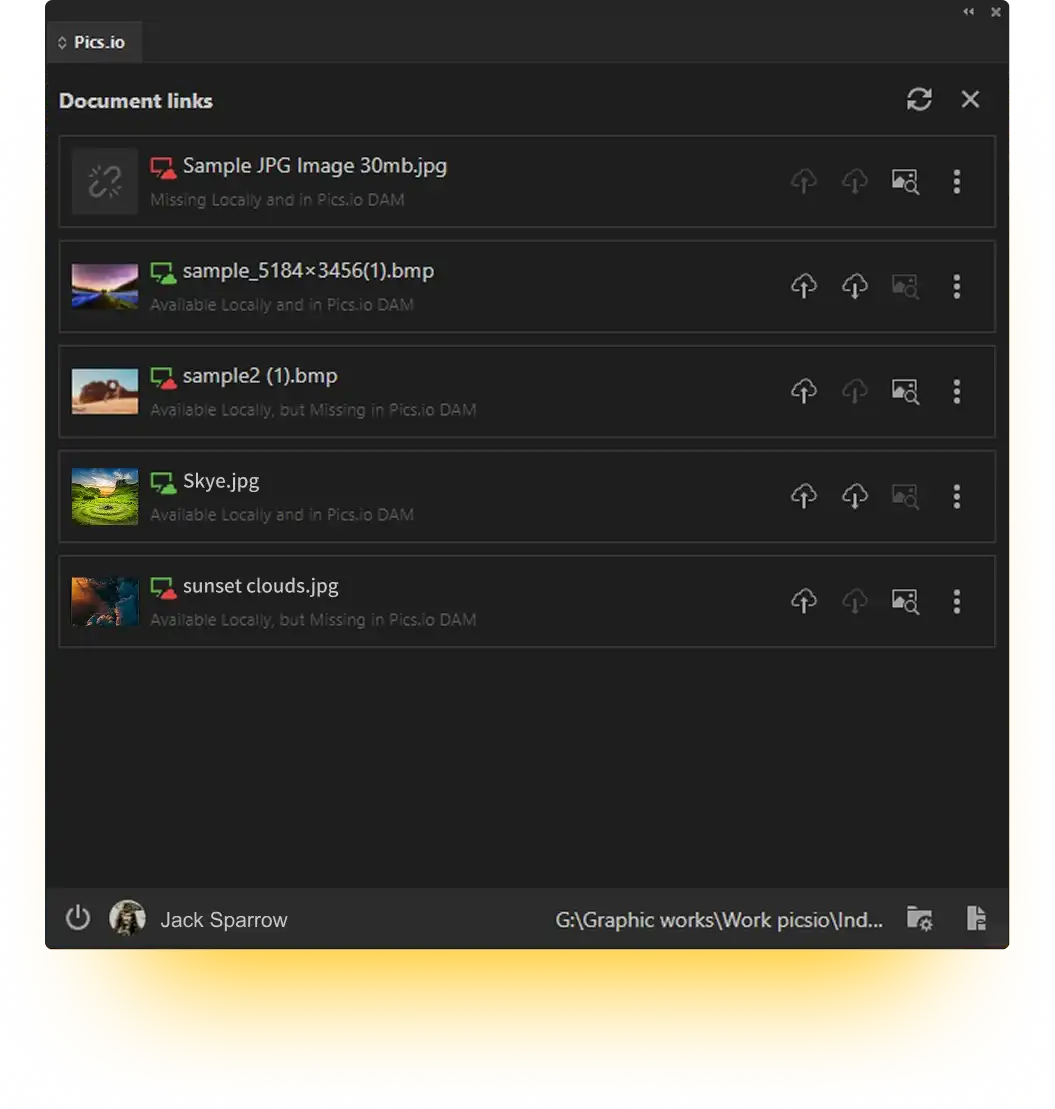
How does your InDesign workflow get easier with Pics.io?
Design faster with your DAM at hand. Browse your library, drop assets into layouts, and keep links healthy — all without leaving InDesign.
- Full link overview:
See every linked image, graphic, and media in one panel. - Clear statuses:
Know what’s local, in Pics.io, out-of-date, or missing at a glance. - One-click fixes:
Download originals, upload missing files, or auto-relink — right in InDesign. - Always current:
Each link points to the latest approved file in Pics.io. - Lighter hand-offs:
Share the .indd; teammates with Pics.io access can pull originals in one click.
Note: External vendors/printers may still require packaged jobs. Use InDesign’s Collect for Output when needed
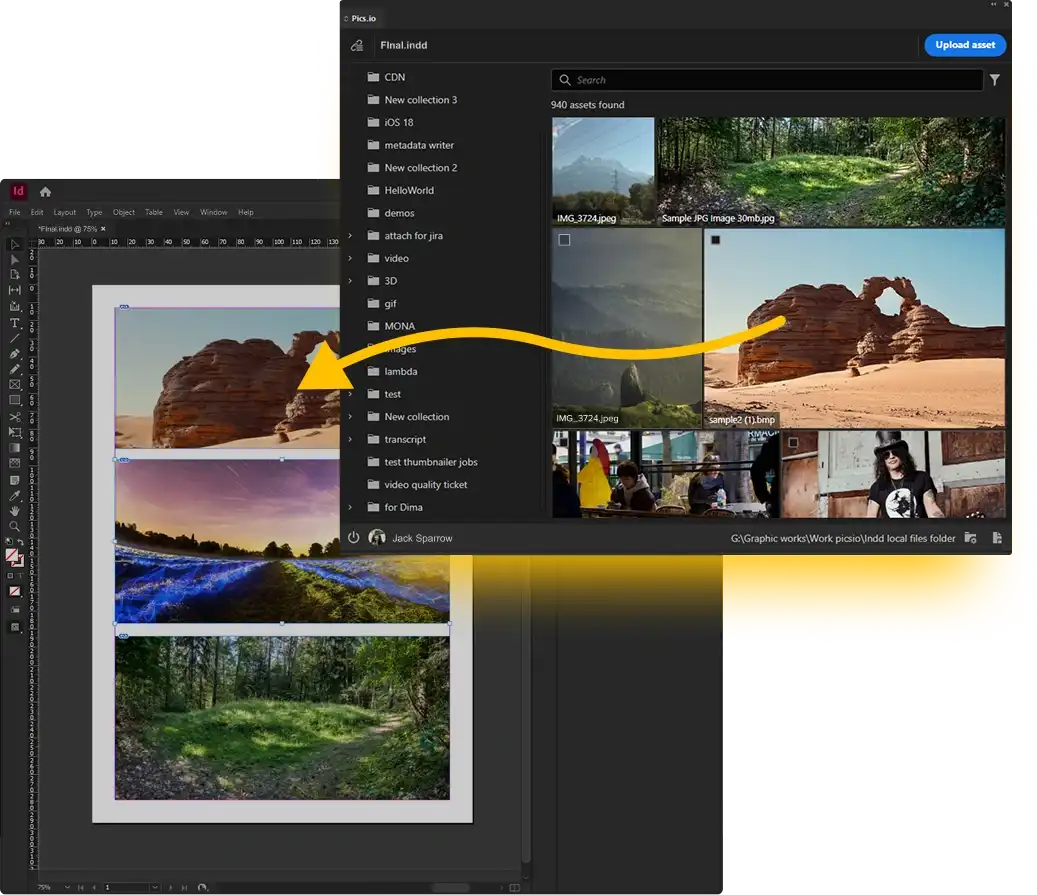
What our InDesign integration lets you do?
- Browse your library, right in a panel
Search by keywords, tags, or collections — preview and pick without app-hopping. - Place assets in a snap
Drag and drop approved files onto the artboard; the plugin handles the links. - Keep links under control
See what’s local, in Pics.io, out-of-date, or missing. Refresh or relink before anything breaks. - Re-upload new versions
Save your edits and push a new version to Pics.io in one click so everyone stays on the same page. - Stay organized
Open in Pics.io, reveal in Finder/Explorer, or clean up links — everything from one place.
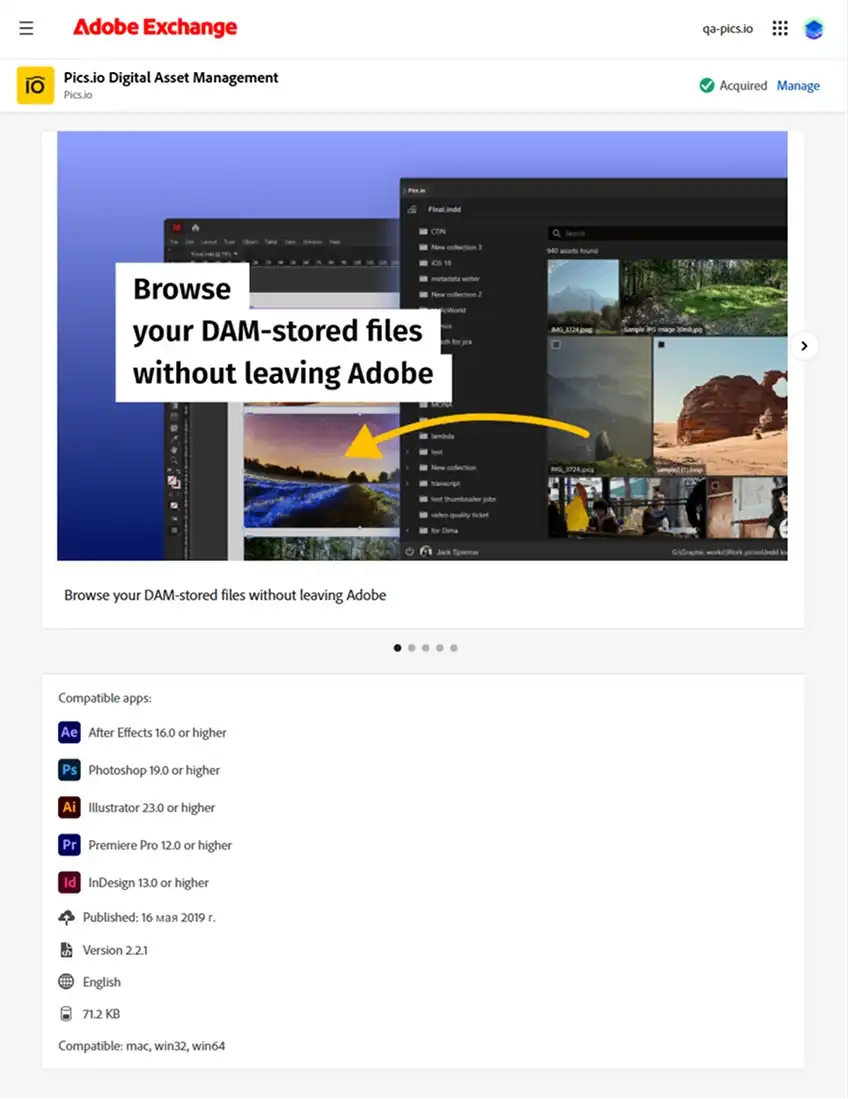
How to integrate Pics.io with Adobe InDesign (5 quick steps)
- Install the plugin:
Open Creative Cloud Desktop → Stock & Marketplace → Plugins, then install Pics.io for InDesign. - Launch the Pics.io panel:
Open InDesign and launch the Pics.io panel. - Sign in:
Log in to your Pics.io workspace inside the panel. - Place approved assets:
Browse your DAM, then drag-and-drop approved files into your layout. - Stay in sync:
Use the panel to fix broken/modified links in one click and upload new versions back to Pics.io so everyone uses the same source of truth.
If you prefer a manual install (ZXP),
see our Help Center for step‑by‑step instructions or get in touch with our support.
See all Adobe CC integrations





Trusted by creative teams worldwide

Pics.io approximately saves us half an hour per image. I like the interface in Pics.io DAM. I think it's easy to navigate. I really like this product. There was nothing in place before I got here. Adopting Pics.io digital asset management has been a big step in the right direction for us. So thank you!


"Pics.io helps centralize our storage, making our photos and other assets easy to archive and retrieve. The integration with Google Drive ensures everything is backed up and safe. We also appreciate the tagging and custom fields, which make it easier to organize and search for assets."

“Before Pics.io, our team spent up to 13% of their day just finding and uploading designs—on average, 9%. Since implementing Pics.io, the marketing team specifically has seen a 73% reduction in time spent searching for and retrieving assets compared to pre-launch.”

"Pics.io helped us clean up that process. It’s now much easier to organize, share, and access content without wasting time digging through duplicates or endlessly searching for the right file."

"The biggest benefit is the ability to store, categorize, and quickly find what we need. With Pics.io’s tagging and search functions, we can access assets instantly and share them easily with external partners."

“Pics.io helps us keep everything organized, so our social media manager can easily find specific images or features to highlight. Our content writers also use it for emails, blogs, and website content. It’s a valuable tool for both sales and marketing."

I absolutely love how adding comments to photos or videos or adding comments to videos is time-stamped. And then you can also set time codes in a comment too. That's been hugely helpful for me as a video editor.


We were searching for a service that would help us organize, manage and utilize our photos & media assets. We were spending a lot of time, sometimes hours, looking for the necessary file! Luckily, with Pics.io searchable and shareable asset organization, we are better organized and no longer have this issue.


I find Pics.io the easiest to use, the most intuitive, and the most robust

The main thing that drove us to you was that we could use our storage system based on our Google Drive system. All the other providers were charging lots of extra money for storage.

So the biggest challenge that was solved was getting every contributor working in the same location, all the files living together

I can't believe how well Pics.io DAM works. It's really amazing! Our staff put files in a shared Google Drive just for this purpose and then it shows up in Pics.io

We needed a metadata-based solution where we could just flag assets or write the description and then use the search tools to be able to discover those files more easily

Pics.io DAM is not only a time saver but convenience, and just allows us to be more productive

Pics.io has been really easy to work with!

Pics.io has dramatically sped-up the process of storing, sorting, and searching our photos. The positive impact it has had on our productivity has been immeasurable. And it uses our existing Google Drive storage, so no need to manage yet another cloud storage platform.

Last year we realized that we needed a Digital Asset Manager (DAM). None of us were saving images in the same location and there was no way to search for them. That's when we found Pics.io! One year later all our images are tagged, searchable, and even have face recognition! Pics.io has saved us a lot of time and money.

It is very intuitive and brings a lot of necessary features for today's workflow. For me, the foundation with Google Drive integration was tipping the scale and I made the decision to get more into it. For somebody getting in touch for the first time with classical dam-services, it is a perfect starter with more than fair pricing and a 24/7 scaling option for all features.

It’s so easy to find and reuse images with Pics.io! Everything is kept in one place and we can tag and sort our files cross-team, and then share them with our PR team. Without Pics.io it would be impossible to keep on-top of our social media marketing.

What we really like about Pics.io is that it allows you to build everything off your cloud storage. It’s really great as we’re already paying for your cloud storage to store all our files in the cloud, so it seems kind of silly to pay twice, right? With Pics.io you get the same unlimited storage for the same effective price!

Great system! We've been using Pics.io to store and modify our pictures here at work for some months now. The assistance is really good, fast and efficient.

My clients and I love working with this platform. Good handling. Easy to use.

Platform is easy to use and great for managing images.

We've already started a trial to learn more about the Pics.io tool, but it feels like we've known it for years. I'm super excited to show this tool to our clients.

This program is so easy to use and very intuitive and the customer service is top-notch when something isn't clear. This program has already saved my team a lot of time.

Design plays an important role in the work we do at Recruitee and Pics.io helps us efficiently centralize, manage and share our many visual assets.
Ready to speed up your InDesign work?
The InDesign integration puts your DAM in the canvas you use every day — fast access, clean links, current versions. Search by keywords or collections, place confidently, and keep projects moving without bouncing between apps.
Schedule your free live demo
By submitting this form, I agree to Pics.io Terms of Service and Privacy Policy and will receive communications from Pics.io